 Purpose
If you encounter a security warning such as:
"Successful exploitation of this vulnerability could reveal sensitive information to an unauthorized attacker."
It indicates a potential security risk, and the Autom Mate UI service’s underlying Apache Tomcat version must be updated immediately.
 Step-by-Step Update Instructions
1. Download the Fixed Version
- Go to the official Apache archive download page.
- Download the file:
apache-tomcat-10.1.35.zip
 Important: Make sure to download the correct version based on your system architecture.
- For 64-bit systems (which is the standard for most modern setups), select the 64-bit Windows distribution.
- If your system is 32-bit, ensure you download the 32-bit compatible version.
 Downloading the wrong version may lead to compatibility issues or startup failures. Please confirm your system type before proceeding.

2. Extract the ZIP File
- Extract the downloaded
.zipfile to a temporary folder, e.g.C:\apache-tomcat-10.1.35
3. Stop the Current Service
- Open the Windows Services console (
services.msc) - Locate the service named
Apache Tomcat 10.1 AutomMateUI - Right-click and select Stop

4. Backup Existing Installation
- Navigate to
C:\autommate - Copy all files and folders except
webappsto a backup folder on your Desktop
5. Copy New Version Files
- From the extracted folder, copy:
binfolderlibfolder- All other root files (e.g.
LICENSE,NOTICE, etc.)
- Paste them into
C:\autommateand choose Replace when prompted

6. Delete the Existing Service
- Open Command Prompt as Administrator
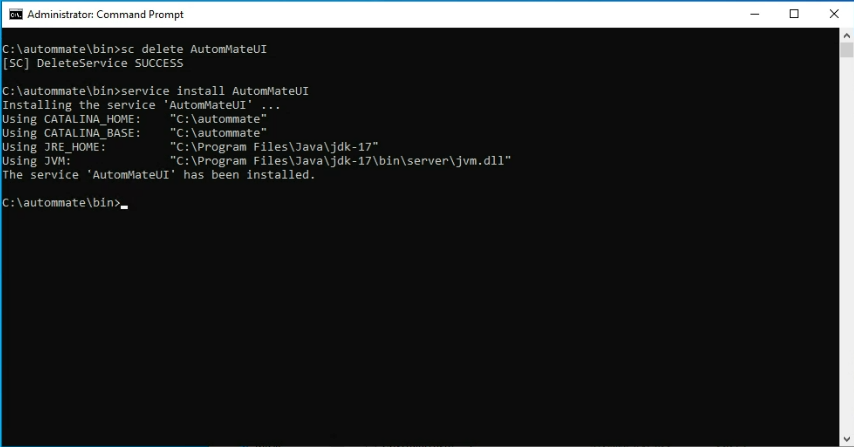
- Run the following commands:
cd C:\autommate\bin
sc delete AutomMateUI
7. Reinstall the Service
- In the same command prompt, reinstall the service with:
service install AutomMateUI
AutomMateUI) to maintain consistency with system integrations.
8. Verify Version
- Refresh the Services window
- The
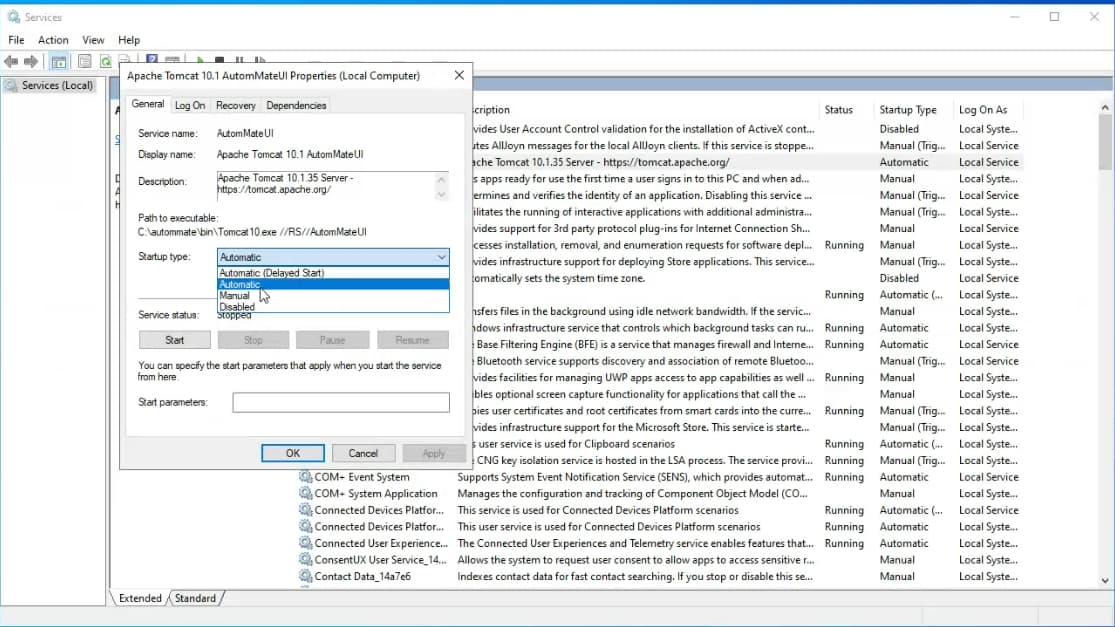
Apache Tomcat 10.1 AutomMateUIservice should reappear - Open its Properties and check the Description field to verify that the version shows
10.1.35

9. Configure and Start the Service
- In the same Properties window, set:
- Startup type to
Automatic
- Startup type to
- Click OK to save, then Start the service manually
 Final Check
Once all steps are completed:
- Autom Mate UI should be accessible and running properly.